Adding Photos in Teashop Finder
“Official” Photos
At Teashop Finder, if a listing is posted by you or already claimed by you, you may add “official” photos that appear in the listing description section rather than just on the tabbed section below. You may add as many as the plan in which your entry is listed in. That’s 9 for a “Claimed” plan and 4 for a “Free” plan. Read more: How to Post a Listing in Teashop Finder
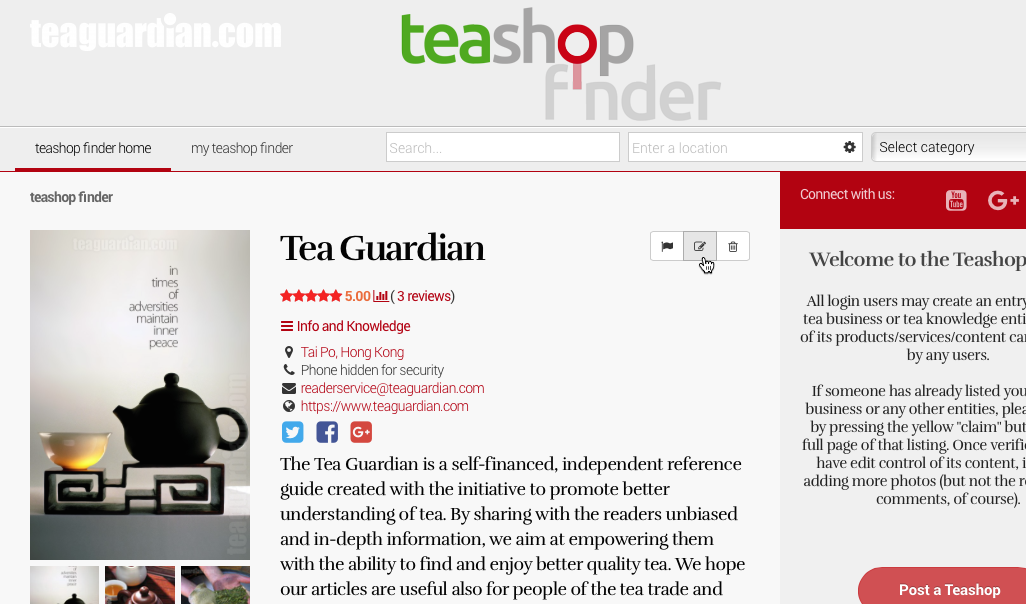
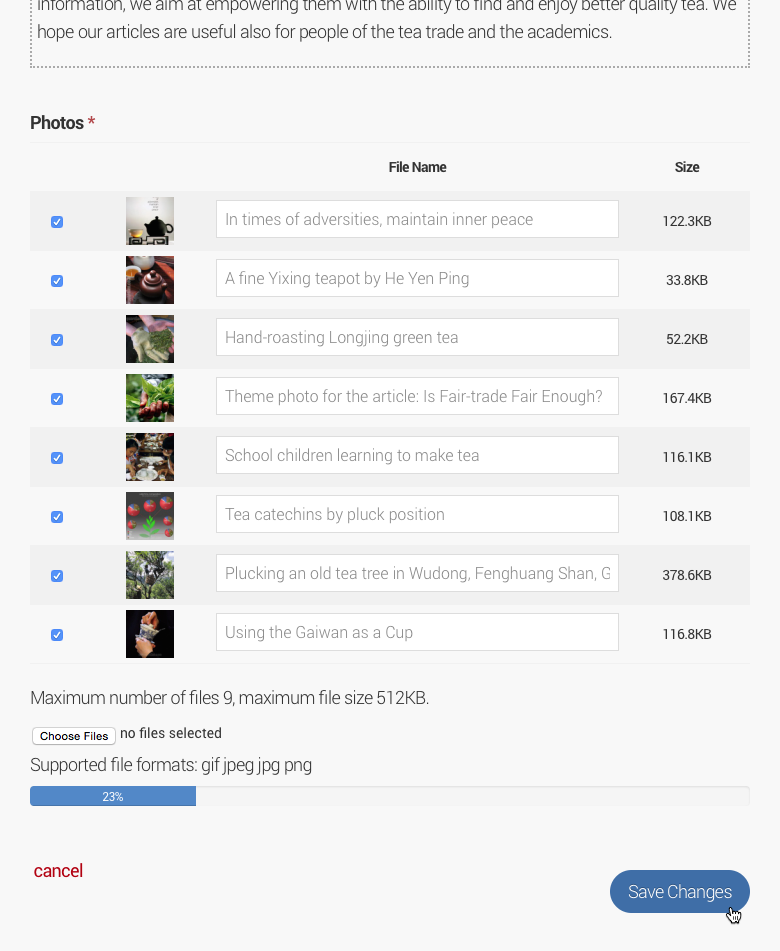
To post a photo that you want to appear above the fold at the description section, simply roll the curser onto the description area and a small “slide-out” menu will appear. If you are already signed in, there will be the “edit” button in the menu. Click on it to go to the edit page. Scroll down to see the photo section to upload your photo.
“Review” photos or other additional photos
All users can add reviews to any listings. In the review posting window, the user can post photos associated with the review. These photos will appear under the same tab as the “official” photos and all the other photos posted through review. The best way to have more photos under your listing is therefore to encourage your customers to post reviews of your tea entity in Teashop Finder.
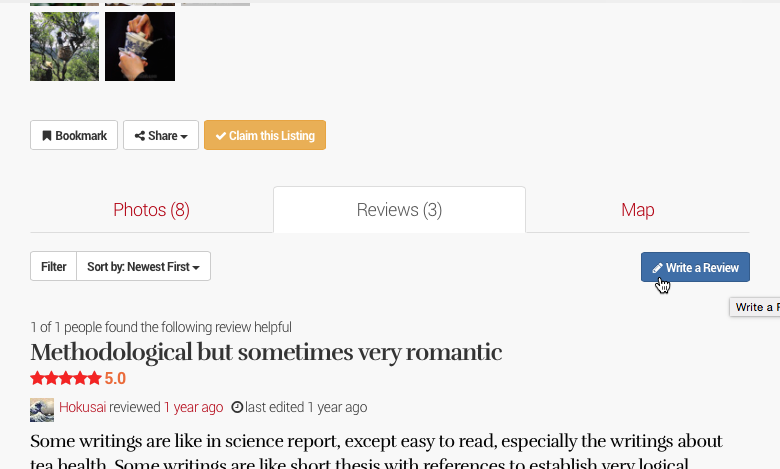
To write a review, simply click on the review tab, and then the “write a review” button under the tab. A new window for review posting will appear with similar photo uploading features as shown in the screen shot above.
To upload a photo without writing a review, simply click on the green “upload photos” button under the photos tab.
Enjoy presenting your photos here!